


Longhornfrenzy
Supporters
-
Joined
-
Last visited
Everything posted by Longhornfrenzy
-
Nope. I'm an asset manager for a railcar manufacturing and leasing company
-
D2, D3, & NAIA right now

-
Right there with y'all. I got more work done today that I did all last week. Maybe I'll get to keep my job for another week 😂
-
Work sure is interrupting my OTF board timeHe's a sick freak, but he's our sick freak😂
 Thank you 🤘🏼The Prime Minister of aggy propaganda speaks
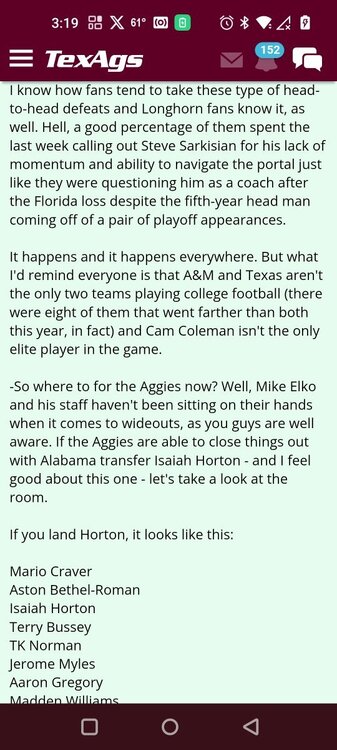
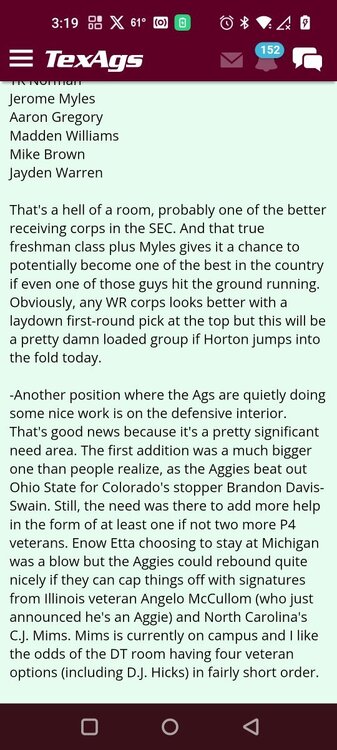
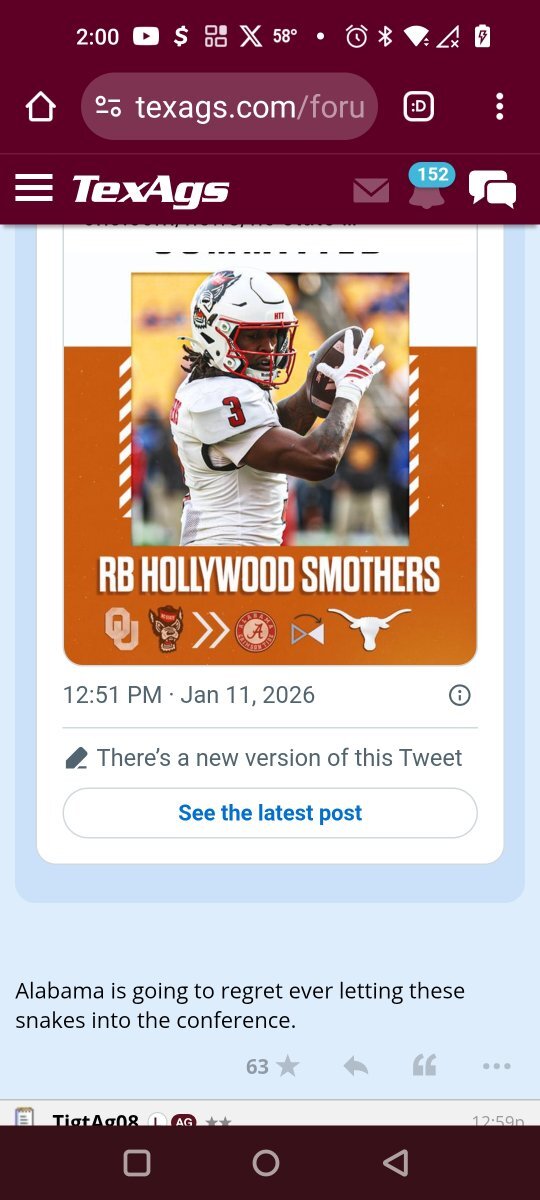
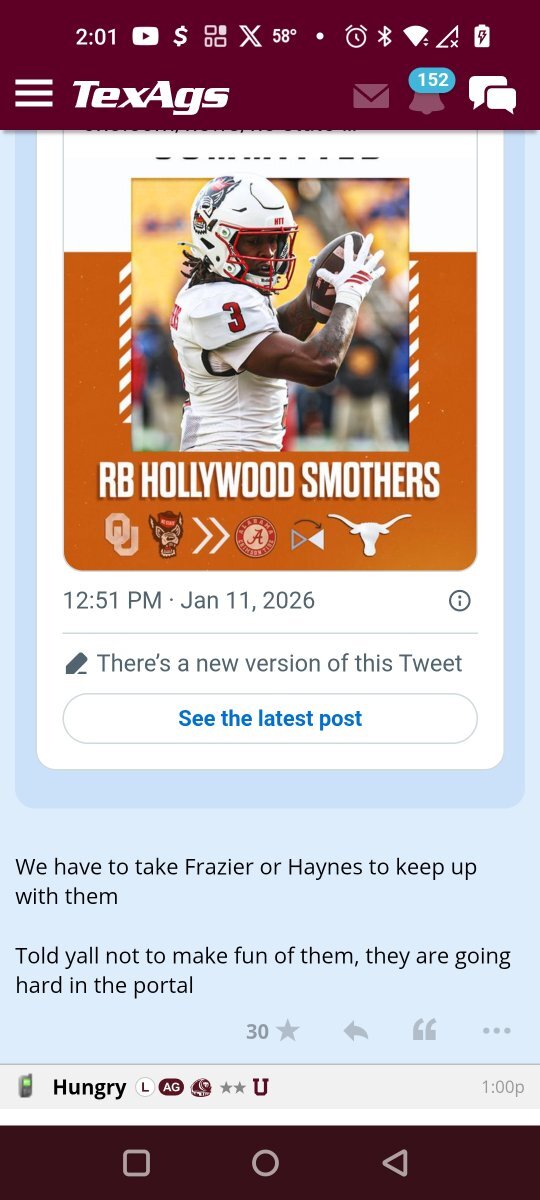
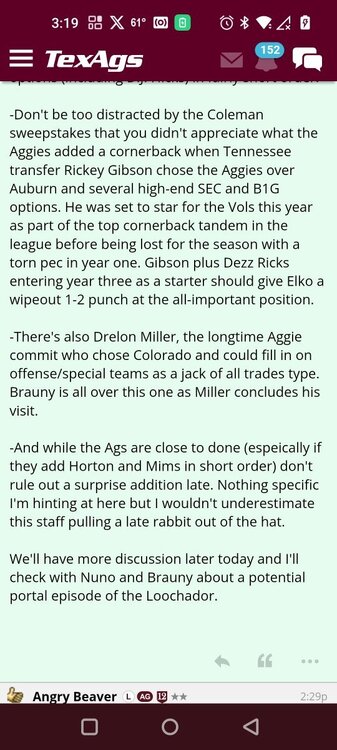 Alabama taking those L's
 Going to be a long but good day🤘🏼
 I know a couple of more schools that will be too, 😂Sound's like you need Taco Bell
Important Information
We have placed cookies on your device to help make this website better. You can adjust your cookie settings, otherwise we'll assume you're okay to continue.
Account
Navigation
Search
Configure browser push notifications
Chrome (Android)
- Tap the lock icon next to the address bar.
- Tap Permissions → Notifications.
- Adjust your preference.
Chrome (Desktop)
- Click the padlock icon in the address bar.
- Select Site settings.
- Find Notifications and adjust your preference.
Safari (iOS 16.4+)
- Ensure the site is installed via Add to Home Screen.
- Open Settings App → Notifications.
- Find your app name and adjust your preference.
Safari (macOS)
- Go to Safari → Preferences.
- Click the Websites tab.
- Select Notifications in the sidebar.
- Find this website and adjust your preference.
Edge (Android)
- Tap the lock icon next to the address bar.
- Tap Permissions.
- Find Notifications and adjust your preference.
Edge (Desktop)
- Click the padlock icon in the address bar.
- Click Permissions for this site.
- Find Notifications and adjust your preference.
Firefox (Android)
- Go to Settings → Site permissions.
- Tap Notifications.
- Find this site in the list and adjust your preference.
Firefox (Desktop)
- Open Firefox Settings.
- Search for Notifications.
- Find this site in the list and adjust your preference.